
What are Hosts Files?
Often when previewing a website before it goes live you may be required to trick your computer into thinking that a website is on a different server to where the live site is. To do this you will need to edit the host file.
Modifying Hosts Files
For Windows 10 and 8
- Press the Windows key.
- Type Notepad in the search field.
- In the search results, right-click Notepad and select Run as administrator.
- From Notepad, open the following file: c:WindowsSystem32Driversetchosts
- Make the necessary changes to the file.
- Click File > Save, to save your changes.
See below for an example of a hosts file.
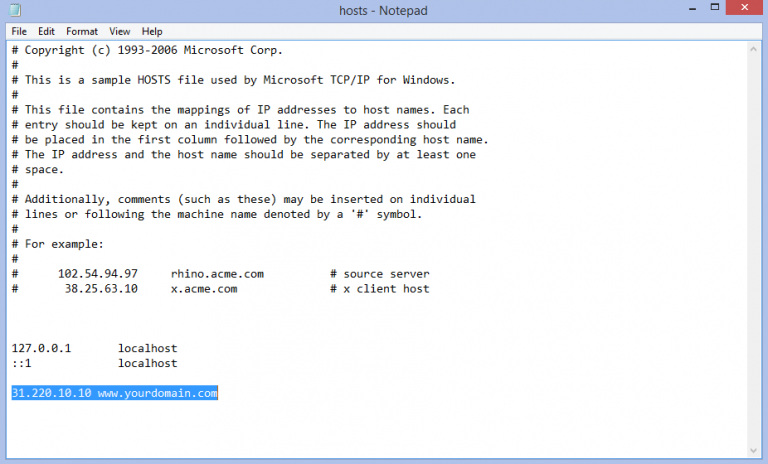
You can add an entry by providing the the following
[your hosting account's IP address] [your domain name]
For example:
12.0.0.1 sampledomain.com
[top_tip]Once you are done testing the website. Remove it again on the hosts file or include a hash symbol (#) before the IP address to comment the line out.[/top_tip]
Never change the below lines:
127.0.0.1      localhost
::1            localhost